
Linked & family accounts
Some items belong to the whole household — the family pet, a shared car, a kid’s backpack. Linked accounts let another person help manage specific items and respond to finders, without ever sharing your password or handing over your whole account.
How linking works
You invite someone by email. Once they accept, you can share individual items with them and choose exactly how much they can do with each one — from just seeing it, up to replying to finders on your behalf. Nothing is shared until you choose to share it.
A paid feature
Inviting someone
- 1
Send the invite
Open Linked Accounts, enter the person’s email and a short label (“Partner”, “Mum”), and send. They get an email with a link to accept.
- 2
They accept, reject, or block
The recipient signs in and chooses. Accepting links the two accounts; they can also decline, or block future invites from you (silently — you’re not told). You can cancel a pending invite any time before it’s accepted.
- 3
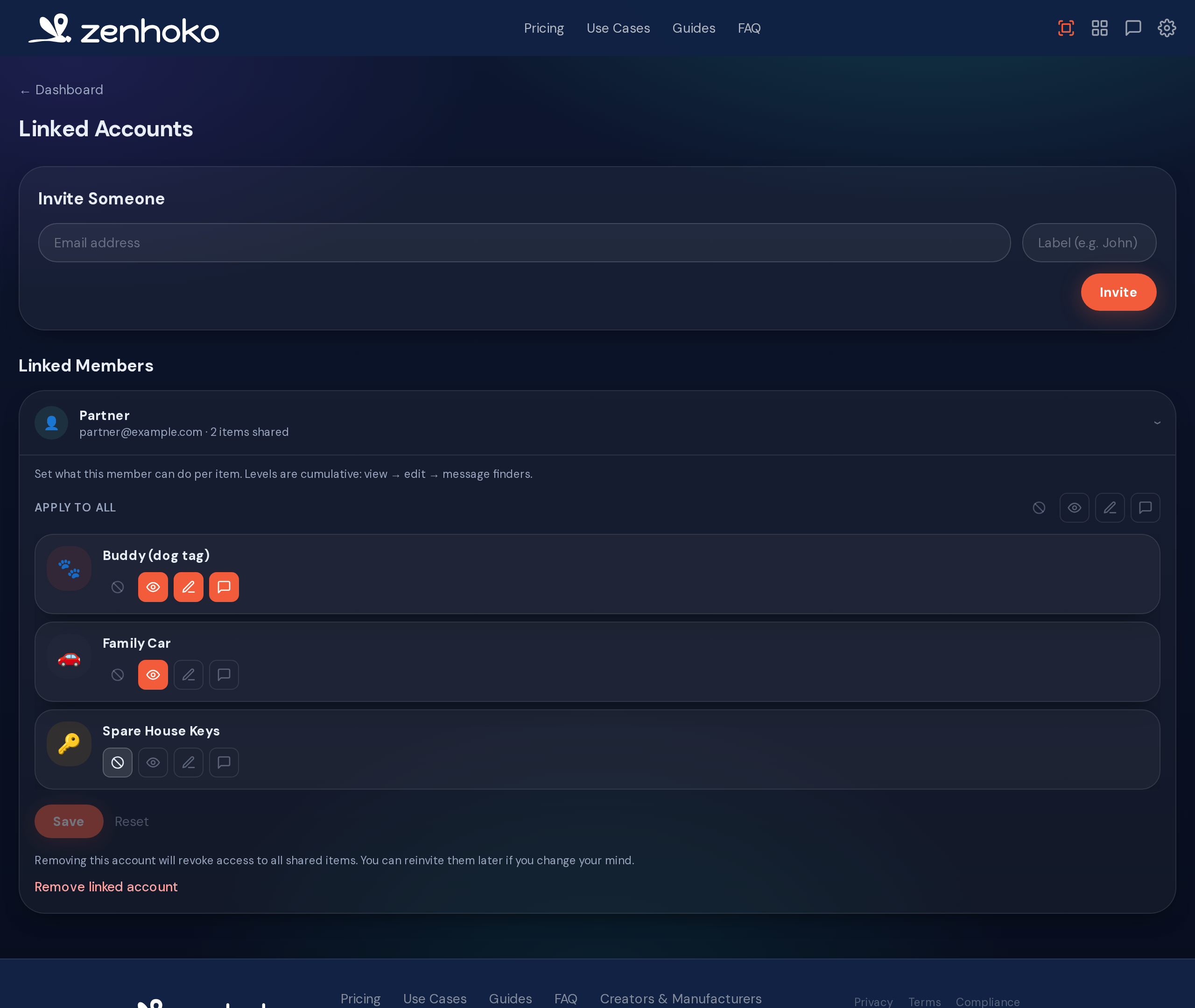
Set what they can do
Once linked, expand the member and set a permission per item. Ranks are cumulative — each includes everything below it:
- • None — the item isn’t shared with them.
- • View — they can see the item and its details.
- • View & edit — they can also update its name, photo, and description.
- • + Message — they can reply to finders in that item’s conversations.
- • Full control — everything you can do with the item: report it lost or stolen, deactivate it, give it away, or delete it. Deleting permanently disables that QR code and can’t be undone.
Set the global permission to apply the same rank to every item at once, including ones you add later; individual items can then be set higher or lower. A member on full control globally can also register brand-new items onto your account — those show “Registered by” their email address at the bottom of the item page.
Common questions
Where to next
Didn’t find what you needed? Browse the FAQ or contact support.